



Need Help?
Minecraft issues? Write to Cubion team. We'll help you solve them.
Launcher on Linux
Quick answer
Step-by-step guide to install the Cubion Launcher on Linux: download AppImage or .deb, make executable or install via package manager, sign in with Microsoft, choose version, install mods, and launch.
Installing the Cubion Launcher for Minecraft on Linux is a simple and straightforward process. Follow the steps below to quickly set up the launcher and start playing modded Minecraft on your Linux system.
Cubion supports popular Linux distributions and provides an easy installation flow without complex manual setup.
Step 1: Download the Cubion Launcher
You are already on the official Cubion website. Simply click the “Download” button to download the Linux version of the launcher.
Depending on your distribution, the installer may be provided as an .AppImage or .deb file. Once the download is complete, locate the file in your downloads folder.
Tip: Download only from the official cubion.io website for a safe installer.
Step 2: Open the Installer

For AppImage:
Make the file executable and double-click it to launch Cubion.
For .deb packages:
Open the file using your system package manager and complete the installation.
After installation, you can launch Cubion from your applications menu or directly from the file.
AppImage: in a terminal you can run chmod +x Cubion*.AppImage then run the file. For .deb, use your package manager or sudo dpkg -i Cubion*.deb if needed.
Step 3: Sign in to Your Microsoft Account
Once the launcher opens, sign in using your Microsoft account. Click “Log in with Microsoft Account” and follow the authorization process.
After successful login, you will see your account connected inside the launcher.
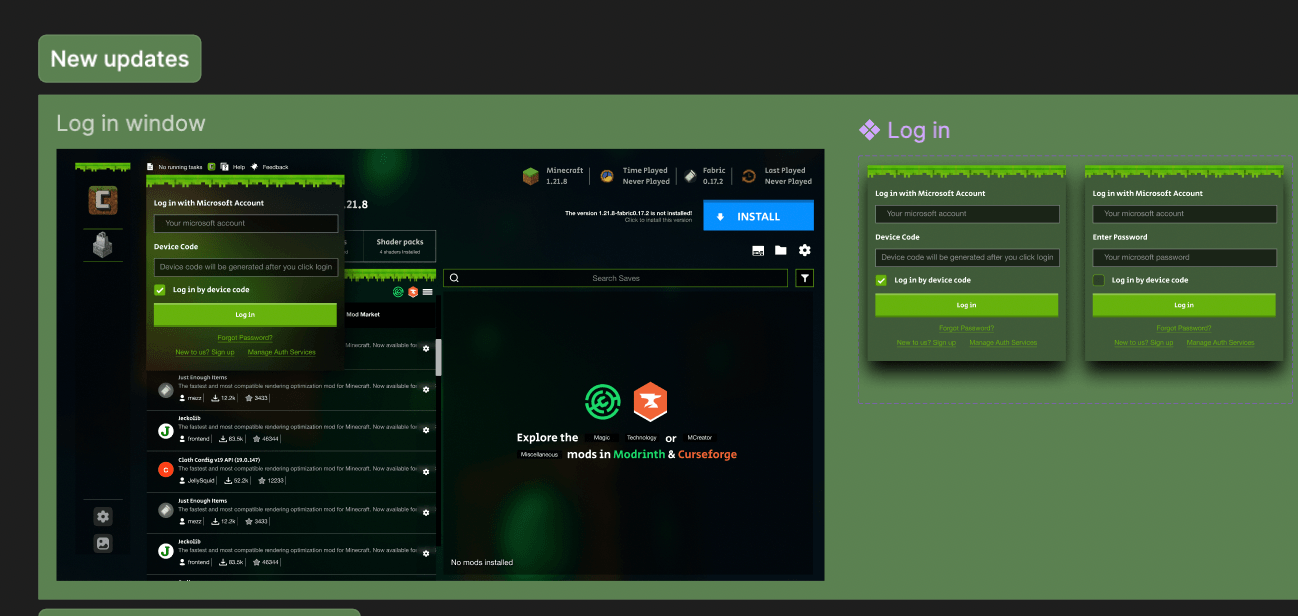
Cubion uses the official Microsoft sign-in flow—your password is never entered into the launcher itself, only on Microsoft's secure page.
Step 4: Choose Your Minecraft Version
Select the Minecraft version you want to play. Cubion Launcher supports multiple Minecraft versions and automatically handles compatibility for mods and modpacks.
You can change versions at any time directly from the launcher.
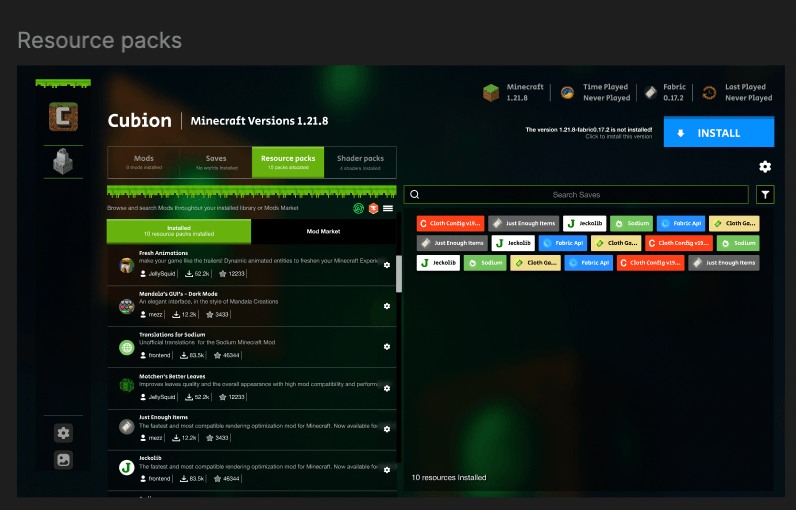
Step 5: Download and Install Mods
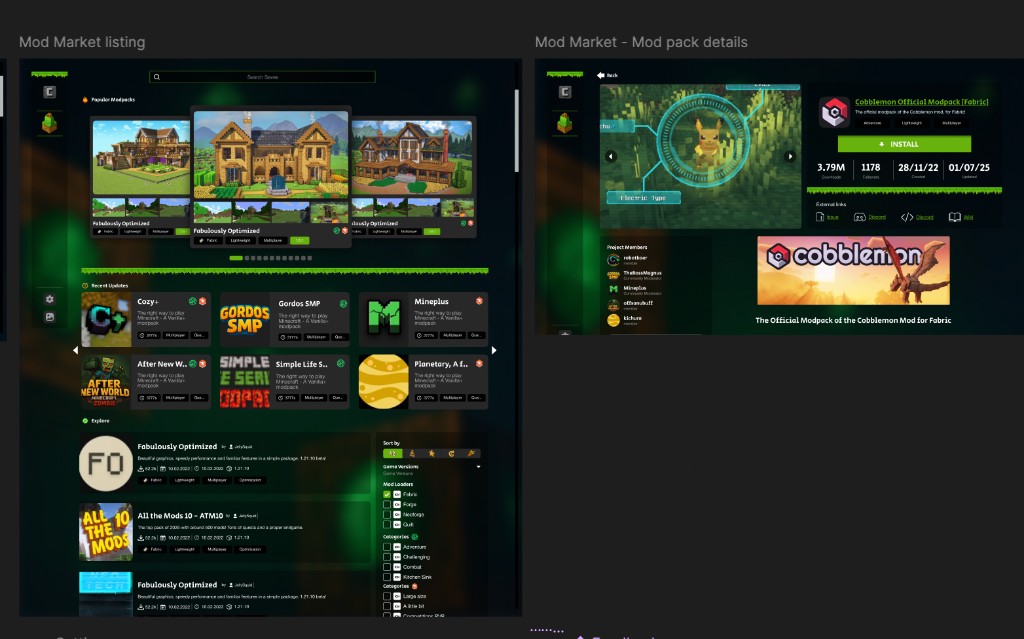
Browse the Mod Market inside Cubion, choose the mods or modpacks you want, and install them with one click.
Cubion automatically manages dependencies and configurations, so no manual setup is required.
One-click modpacks
Install full modpacks from CurseForge and Modrinth directly in Cubion—no manual file copying needed.
Step 6: Launch Minecraft
When everything is ready, click “Play” to start Minecraft.
Cubion optimizes the launch process, ensuring a smooth and stable modded gameplay experience on Linux.
Ready to play?
Click the green Play button in the launcher to start your game.
Cubion for Linux — Coming SoonBy following these steps, you can quickly install the Cubion Launcher on Linux and enjoy Minecraft with mods safely and effortlessly.
Need more help?
For additional help, visit our FAQ page or join the Cubion community on Discord.